

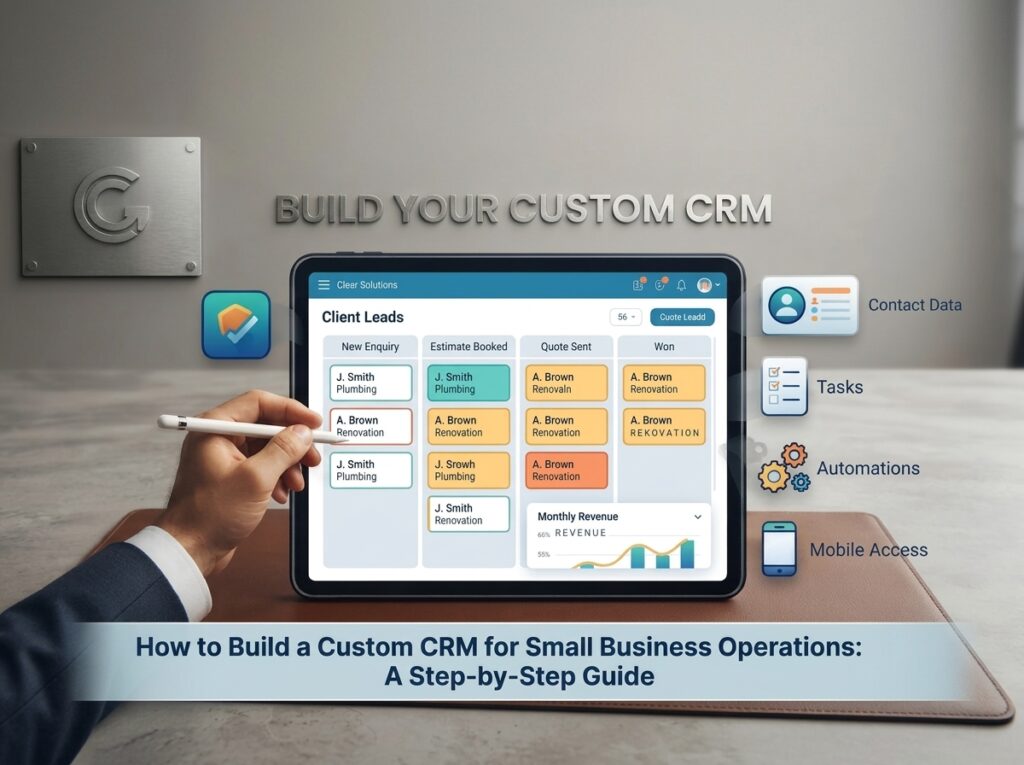
Most small businesses run on a patchwork. A spreadsheet for leads. An inbox for quotes. A shared calendar nobody fully trusts.
It works until the day it doesn’t. A lead goes cold because nobody noticed. Two people call the same customer on the same afternoon.
Learning how to build a custom CRM for small business operations is more approachable than most owners expect. You can start with a modest budget and no in-house developers. What matters most is a clear picture of how work moves through your company.
This guide walks through the whole build in nine steps, whether you run a trades company in Calgary or an accounting firm in Halifax. We’ll flag where a ready-made tool is the smarter choice, because sometimes it is.
Before you build: is a custom CRM the right call?
Custom sounds exciting. It also costs more up front and takes longer than signing up for a ready-made tool. So run the build vs buy CRM test first.
Four questions to answer honestly
- Does your process have steps that off-the-shelf tools handle badly, such as multi-stage quoting, job sites or approval chains?
- Do you pay for add-ons or workarounds that only half fit?
- Does your team keep a side spreadsheet because the CRM can’t hold something they need?
- Will you have enough users that per-seat fees add up quickly?
Say yes to two or more and a custom build deserves a quote. Say no to most and start with a ready-made system.
Custom CRM vs off the shelf is rarely all or nothing. Plenty of businesses begin with a ready-made tool and build custom pieces only where it falls short. The rest of this guide works either way.
If you want a ready-made starting point, our own Thrive CRM brings pipelines, automated follow-ups, email and SMS, and appointment booking into one platform, with a 14-day free trial. It’s a Clear Solutions product, so compare it against other tools the same way you would any option.
Step 1: Map the operations your CRM has to run
Open a whiteboard or a big sheet of paper before you open any software.
Write down the journey a customer takes from first contact to final payment. For a plumbing company it might read: enquiry, phone call, estimate visit, quote, acceptance, scheduling, job, invoice, payment, review request. An accounting firm’s version looks different: enquiry, discovery call, engagement letter, onboarding, monthly work, billing.
For every step, note four things:
- Who does it
- What information they need at that moment
- Which tool they use today
- Where it tends to get stuck
Now circle the handoffs. That’s where leads leak. A lead moves from the website form to the office manager to the estimator. Each handoff is a chance for it to stall.
Pick the two or three worst bottlenecks and put a number on them. If chasing quote replies takes 20 minutes each and you send 30 quotes a week, that’s 10 hours of work a computer could do. Those bottlenecks become your first automations.
Step 2: Write your CRM requirements
A written list of requirements stops the project from growing every week. Keep it to one page at first.
Here’s a simple CRM requirements template. Copy it into a spreadsheet and fill one row per feature:
Requirement | Who needs it | Priority | Example |
Capture web form leads automatically | Office manager | Must-have | A new enquiry creates a contact and a task |
Pipeline with your own stages | Sales lead | Must-have | Enquiry, estimate booked, quote sent, won, lost |
Quote builder | Estimator | Must-have | Pulls prices from a saved price list |
Automatic follow-up | Everyone | Must-have | Text after 1 hour, reminder after 2 days |
Calendar sync | Crew lead | Nice-to-have | Booked jobs appear on the shared calendar |
Reports | Owner | Nice-to-have | Leads by source, win rate, revenue by month |
Customer portal | Customers | Later | View quotes and invoices online |
Sort every row into must-have, nice-to-have or later. If your must-have column runs past ten items, you’re trying to build too much for version one.
Also note who can see and edit what. Your bookkeeper probably doesn’t need your sales notes.
Most small businesses also need this short list of core features before anything fancy:
- Contact and company records
- Lead capture from forms, calls and texts
- A visual sales pipeline
- Tasks and reminders
- Simple reports
- Mobile access
- User roles and permissions
If a feature isn’t on your list, it isn’t part of version one.
Step 3: Design your data model
The data model is the skeleton of your CRM. Get it wrong and every feature built on top of it wobbles.
Pick your core objects
Most small businesses need six:
Object | What it stores | Key fields |
Contact | A person | Name, phone, email, lead source, owner |
Company | An organization | Name, address, industry |
Deal or job | A piece of work | Stage, value, start date, assigned to |
Task | A to-do | Due date, owner, linked deal |
Activity | The history | Type, date, author, notes |
Document | Files | Quote, contract, photos, linked deal |
Choose fields carefully
Use dropdowns instead of free text wherever you can. Otherwise “Referral” and “referal” become two different lead sources in your reports.
Add only the fields someone will actually use. Every extra field is one more thing your team has to fill in.
Decide how the objects relate
One company has many contacts. One contact has many deals. One deal has many tasks and documents.
A quick example
A property manager calls about a leaking roof. You create the contact and link it to the building’s company record. Then you create a job linked to that contact, with a task to book an inspection. Six months later, you can open the company record and see every job you’ve done for them.
Step 4: Choose how to build it
You have three routes. They sit on a ladder from cheap and quick to expensive and flexible.
Route | Pros | Cons | Best for |
Build on a no-code database tool | Fast to start and cheap to change | Gets clunky past a few hundred records or complex logic | Very small teams testing an idea |
Customize a ready-made CRM | Proven features with your own fields, stages and automations | You work inside the platform’s limits | Most small businesses |
Write a fully custom system | Fits your process exactly and you own it | Highest cost and the longest timeline | Unusual workflows or fast-growing teams |
Our take: try the middle route first. You’ll learn what your team really uses before you pay for anything bigger.
If you go fully custom, ask your developer these five questions
You don’t need to pick the technology yourself, but you do need a builder who can answer these clearly:
- Will you use mainstream, well-supported tools? Popular frameworks and databases mean you can always find someone else to maintain the system.
- Will it be modular? Separate pieces for contacts, deals and automations let you add features later without rewriting everything.
- Will it work well on a phone? Field crews will judge the whole system by the mobile experience.
- How will it connect to our other tools? Ask which integrations are included and which cost extra.
- What shortcuts are you taking? Shortcuts taken now turn into expensive repairs later, so ask for them to be listed.
Whoever builds it, puts two things in writing: who owns the code and where your data is stored.
Step 5: Build the core first
Version one should be small. Contacts, one pipeline, tasks, notes and one or two automations. Everything else waits.
Build in this order:
- Screens first. Make clickable mockups and let two or three staff try them. Fixing a button in a mockup takes minutes. Fixing it in finished code takes days.
- A small test with real data. Import about 50 genuine contacts by hand or with a simple spreadsheet upload, then push one real lead through the whole pipeline. This is only a test. The full data migration comes in Step 7.
- Phone test. If your crew works in the field, run every screen on a phone. A form that needs pinching and zooming won’t get used.
- Weekly check-ins. Show progress to the receptionist, the estimator and the bookkeeper every week. They’ll spot problems you can’t see.
Time-box the core build to four to six weeks for a small team. A deadline forces choices. Choices keep the scope honest. (If you have complex workflows or many integrations, plan for up to eight weeks. The cost section below uses the same range.)
If a screen needs scrolling just to find the Save button, trim it.
Step 6: Automate the repetitive work
This is where a custom CRM pays you back. Workflow automation follows a simple pattern: a trigger, an action and a check.
Start with four automations:
- New lead alert. A form arrives. The CRM texts the customer, assigns an owner and notifies them.
- Follow-up reminders. No reply after two days? A task appears for the owner.
- Stage changes that create work. When a quote is marked accepted, the CRM creates the scheduling task and the deposit invoice.
- Late payment nudges. A polite reminder goes out the day after an invoice is overdue.
Add a check to each one. If nobody opens a new-lead task within a day, alert the manager. That safety net keeps leads from vanishing quietly.
One warning. Automation can’t rescue a form nobody fills in. If your website gets visits but few enquiries, fix that first. Our guide on website traffic but no leads has 9 fixes you can apply this week.
Step 7: Connect your tools and migrate your data
Connect the tools you already use
Your CRM should talk to your email, calendar, accounting software, phone or texting tool and website forms. Each connection removes a spot where someone retypes information.
Most leads start on your website, so the form matters more than people think. A well-built form sends the right fields to your CRM every time. If yours is old or clunky, our website design and development team can rebuild it.
Move your old data over

Migration is where projects quietly lose weeks. Take it in order:
- Export everything to spreadsheets from your current tools.
- Delete duplicates and dead records.
- Standardize phone numbers, provinces and lead sources.
- Import a test batch of 100 records.
- Check that every field landed in the right place.
- Import the rest.
Keep the old spreadsheets for at least a month after launch. You’ll want them the first time someone asks, “Where did that customer go?”
Step 8: Secure it and respect privacy
Your CRM holds names, phone numbers and sometimes payment details. Treat it like the asset it is.
- Role-based access. People see only what their job needs.
- Two-factor login. Switch it on for every user.
- Encrypted backups. Test a restore at least once a year.
- An activity log. You can see who changed what and when.
- Fast offboarding. Remove access the day someone leaves.
Privacy rules matter too. If you do business in Canada, the federal privacy law PIPEDA generally requires you to get consent before you collect, use or share personal information. The Privacy Commissioner of Canada’s PIPEDA requirements in the brief page is a plain-language place to start.
Canada’s anti-spam law (CASL) adds rules for texts and marketing emails, so have the CRM record consent and handle unsubscribes automatically. Check the details with a lawyer before you send anything automated.
Step 9: Train your team and launch in phases
A brilliant CRM that nobody opens is a failed project. Plan the rollout as carefully as the build.
Before the pilot, test three things:
- Functionality: does every automation fire at the right moment?
- Security: can each role see only what it should?
- Load: does the system stay fast when the whole team logs in at once?
Fix what breaks before real customers are involved.
The rollout clock starts the day the build and full data migration are finished. It is a separate stretch of work from the four to eight weeks of building.
Phase | Timing (after the build is done) | What goes live | Success check |
Pilot | Weeks 1 to 2 | Two or three staff use it for new leads only | No lead gets lost |
Core launch | Weeks 3 to 4 | The whole team uses the pipeline and tasks | Everyone logs in daily |
Automations | Weeks 5 to 6 | Follow-ups and reminders switch on | Replies go out faster |
Reports and extras | Months 2 to 3 | Dashboards, portals and add-ons | The owner reviews numbers weekly |
Train people in a 30-minute session and hand out a one-page cheat sheet. Pick one internal champion who answers questions during the first month.
Keep the old system read-only until the new one has run smoothly for a few weeks.
Once you’re live, your website keeps feeding the system. Our website maintenance team looks after hosting, updates and security so forms keep working and leads keep arriving.
How to tell if your CRM is working
Pick five numbers and check them monthly:
- Lead response time: how long a new enquiry waits for a first reply
- Win rate: quotes accepted as a share of quotes sent
- Adoption: how many staff update records every week
- Data quality: the share of duplicate or incomplete contacts
- Admin hours saved: time your team no longer spends retyping and chasing
Write the numbers down before launch. Without a baseline you can’t prove the CRM paid for itself.
What this looks like in practice (illustrative example)
Take a ten-person roofing company that sends 30 quotes a week. Before the CRM, a new enquiry waits about four hours for a first reply, and the office manager spends roughly 10 hours a week chasing quote responses by phone and email. After a pilot with two staff and three automations (instant lead text, two-day follow-up task, accepted-quote scheduling task), the goal is a first reply within minutes and most of those chasing hours handed to the system. The exact figures will differ for every business, which is why the baseline matters.
[Publishing note: replace this illustrative example with a real client result, including their before-and-after numbers and permission to quote them, as soon as you have one.]
How much time and money to plan for
Prices swing a lot with scope, so treat the figures below as rough planning ranges in Canadian dollars, not quotes. They reflect typical small-business projects and will move with your integrations, number of users and workflow complexity.
Route | Typical setup cost (CAD) | Typical build time |
No-code database tool | $2,000 to $8,000 | 2 to 4 weeks |
Customized ready-made CRM | $5,000 to $20,000 | 3 to 6 weeks |
Fully custom system | $25,000 to $80,000+ | 4 to 8+ weeks |
On top of setup, expect ongoing monthly costs for subscriptions, hosting and support. Always get at least two written quotes for your own scope.
Budget in three buckets:
- Build: design, development, testing and data migration
- Run: hosting, backups, support and subscriptions for connected tools
- Change: the tweaks you’ll want once real people use it
A small team’s core system usually takes four to six weeks to build, and up to eight when workflows are complex or there are many integrations. That’s the same window as Step 5, and it doesn’t include the phased rollout in Step 9.
As a rough rule of thumb, hold back 15 to 20 percent of the build budget for changes in the first year. Your team will find things to improve within a month of launch.
Mistakes to avoid
These sink more CRM projects than any technical problem.
- Copying a competitor’s setup. Every business runs differently, so build around how your own team works.
- Adding every feature at once. Big launches overwhelm staff. Ship the core and grow from there.
- Skipping the data cleanup. Duplicate contacts turn into duplicate texts to real customers.
- Forgetting the phone. Field crews and sales reps live on mobile screens.
- Having no internal owner. Someone on your team has to champion the system after launch.
- Treating launch as the finish line. The best improvements come from month two, once people have opinions.
Conclusion: start small and build what your team will use
Building your own CRM comes down to order. Map the work, write down what matters, build the core and launch in phases.
Pick one bottleneck this week and put a number on it. That number tells you whether a CRM is worth building.
Want help turning your workflow into software? Talk to our software development team about a custom CRM for your business. If you’re still weighing your options, our guide on how to hire a custom CRM agency covers what to look for.